 CloudPhone
 Blog
Cloud phone lagging or dropping? Six causes, an eight-step check, and when to switch
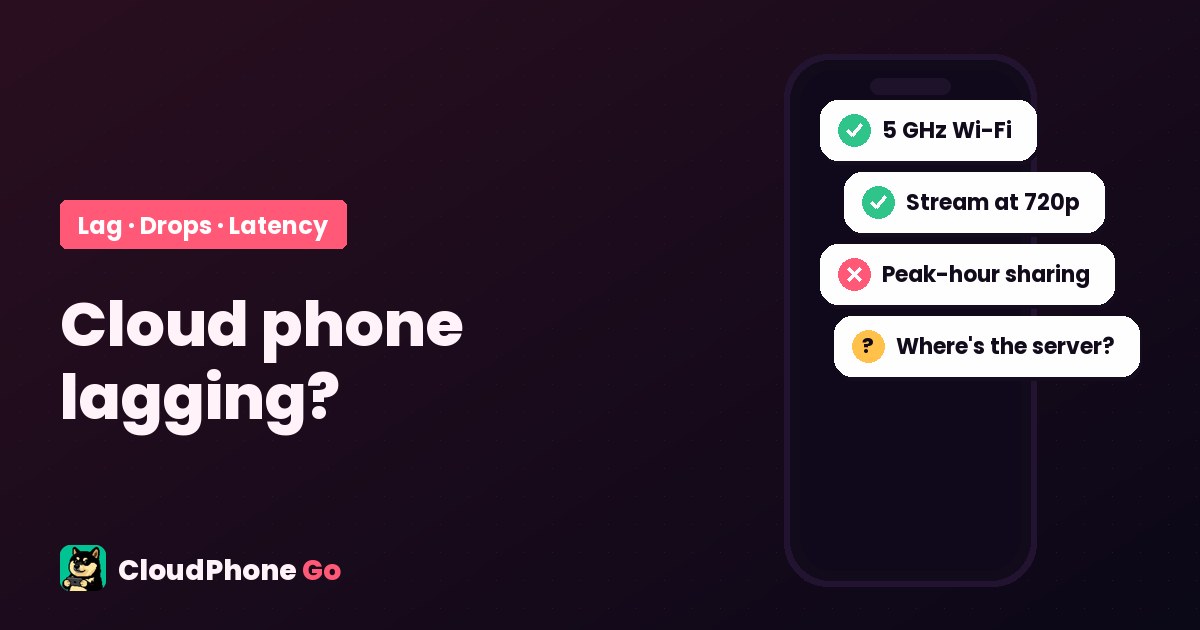
"My cloud phone lags" is three different problems: input latency, choppy video and disconnects. This guide uses RTT, packet loss and FPS to tell them apart, walks through six causes starting with the free fixes, and ends with when an upgrade helps and when it is time to switch, with dated review evidence.
Which kind of lag is it? Three symptoms, three causes
"My cloud phone lags" means one of three different things: input latency (you tap, it reacts half a beat later), choppy video (dropped frames, blur, stutter) or disconnects (the picture freezes, the session reconnects, your idling character is left alone in the field). Each has different causes and fixes, so match your symptom in the table first, then go to the cause.
| Symptom | What the connection indicator shows | Usually whose problem |
|---|---|---|
| Input latency: taps land late, the joystick trails your thumb | RTT high or spiky (8 ms average with jumps to 80 ms) | Your network, or a server too far away |
| Choppy video: dropped frames, blur, stutter | FPS drops and packet loss rises while RTT may be fine | Bandwidth, stream quality set too high, a browser struggling to decode, or peak-hour sharing |
| Disconnects: picture freezes, auto-reconnect, idling interrupted | Packet loss spikes, then the session drops | Network handover (Wi-Fi to 5G), a corporate VPN or firewall, or an unstable server side |
What each indicator means and what counts as normal is covered in How to read cloud phone latency: RTT, packet loss and FPS. On a cloud phone app without a connection indicator you can still use your phone's own speed test and the tap-to-motion feel, but it is harder to tell which leg is at fault.
Cause 1: your own network, 2.4 GHz Wi-Fi, VPNs and network handover
The most common cause and the easiest to fix. A cloud phone stream is a continuous two-way connection, so it cares more about stability than raw speed: a jittery 100 Mbps Wi-Fi plays worse than a steady 30 Mbps. Check these first:
- Join the router's 5 GHz band, not 2.4 GHz. The 2.4 GHz band shares spectrum with microwaves, Bluetooth and the neighbours' routers, so jitter is high; Apple's router recommendations also tell you to enable every band so devices can pick 5 GHz.
- Too far from the router? Try your phone's 5G once. Measure each network for two minutes and keep whichever has the steadier RTT.
- Turn off corporate VPNs or firewalls. The stream uses a direct WebRTC connection, and strict office networks block it or force a detour; the symptom is a session that connects but keeps dropping.
- Stop the phone from switching between Wi-Fi and mobile data on its own. Every handover is one disconnect; while idling, stick to one network.
- Someone streaming 4K or downloading a large file on the same connection shows up as packet loss on your stream first.
Cause 2: peak-hour sharing at the data centre, worst in the afternoon and evening
If your network is fine and mornings are smooth but evenings stutter, it is usually peak load on the provider's side: too many users share the same physical host or uplink and slow down together. Taiwan reviews mention this often. A long-time Redfinger user wrote in a Google Play review on 30 July 2026 that the cloud phone itself was stable but "the network connection has often been unstable these two years, with frequent lag in the afternoon", and the official reply acknowledged the drop in connection quality and said faster lines were being deployed.
The test is simple: watch RTT and FPS for two minutes at different times of day. If it is 15 ms in the morning and 60 ms at night with no change on your end, the problem is at the data centre, and your only options are to avoid peak hours or move to a service with dedicated, unshared resources. That is why we suggest asking "are the CPU and RAM mine alone?" rather than looking at price only.
Cause 3: you were placed on an overseas node, too far from you
Many cloud phone services run data centres in several regions, and Taiwan is only one of them. If your device is in Hong Kong, Singapore or the United States, the round trip alone adds tens of milliseconds and varies with submarine cable conditions. Redfinger's Traditional Chinese site lists servers in the US, Taiwan and Singapore; a player on vocus wrote in an April 2026 comparison that the V7 and V8 VIP tiers "in Hong Kong felt very laggy" and only the much pricier S tier was smooth.
How do you know where you landed? Look at the absolute RTT. From Taiwan fibre or 5G to a Taiwan data centre it is usually within 10 to 20 ms; if your network is healthy but RTT sits above 40 ms, the device is probably not in Taiwan. Apps that let you choose a node: pick Taiwan by hand. If the Taiwan node is full or costs extra, weigh whether it is worth it.
Cause 4: stream quality set too high, browser struggling to decode
Blurry, dropped frames with a normal RTT usually means bandwidth or decoding. In apps with quality settings, drop resolution to 720p and frame rate to 30 and see if the stutter disappears; pick a "smooth first" option if there is one. In a browser, update to the latest version, make sure hardware acceleration is on, and close video playing in other tabs. A phone or laptop older than five years struggles to decode a 1080p stream; lowering quality helps more than changing networks.
CloudPhone Go streams in H.265, which uses less bandwidth than H.264 at the same quality, so it holds up better on a congested network; it decodes in hardware in Safari on iPhone and in Chrome and Edge on the desktop.
Cause 5: the cloud phone itself, long idling, low memory, a game update
A cloud phone is a real Android handset, and it slows down for the same reasons yours does: too many apps open, two weeks of idling without a restart, or a big game update. The tell is normal connection indicators but a game that reacts and loads slowly. In order:
- Close every app except the game and clear background processes.
- Restart the cloud phone (not just the browser tab). A device that has idled for over a week is usually fixed by one restart.
- Clear the game's cache; if that fails, reinstall it. Confirm the account is linked and the save is in the cloud first.
- If it got slow right after a game update, check the publisher's notices: it may be everyone, not you.
- Too little RAM on the plan looks the same: a large MMO on auto-battle easily uses 3 to 4 GB, and an entry plan that cannot hold it needs an upgrade.
Cause 6: the game server's ping is a second leg, separate from stream latency
Playing on a cloud phone has two legs of latency: the stream RTT from you to the cloud phone, and the ping from the cloud phone to the game server. The ping shown in the game's corner is the second leg; it has nothing to do with your network and everything to do with how far the data centre is from the game server and how loaded the game is. Popular Taiwan titles mostly host in or near Taiwan, so a cloud phone in Taiwan keeps both legs short; if you play on mainland China or Southeast Asia servers, a data centre near them is actually better.
The troubleshooting order: 8 steps, free ones first
- Open the connection indicator, leave it idle for two minutes, and note the average and peak RTT, packet loss and FPS.
- Switch networks (Wi-Fi to 5G or back) and measure again. If the numbers improve clearly, the first network was the problem.
- Turn off VPNs, leave the office network, and make sure the phone is not hopping between networks.
- Measure at another time of day. Smooth mornings and choppy evenings with no change on your end point to peak-hour sharing.
- Check the absolute RTT. A healthy network stuck above 40 ms means you should look for a Taiwan node.
- Drop quality to 720p and 30 fps, update the browser or app. If the picture smooths out but RTT is unchanged, it was bandwidth or decoding.
- Restart the cloud phone, clear cache, reinstall the game if needed. Normal indicators but a slow game means the problem is inside the device.
- Still lagging after all seven? Screenshot the indicator with the time of day and send it to support. Or start considering a switch.
Does upgrading the plan help? When should you switch providers?
Upgrading fixes "the cloud phone itself cannot keep up" (cause 5) and some shared-resource cases. It does not fix a distant data centre (cause 3) or your own network (cause 1). Reviews bear this out: the Redfinger user above had climbed from VIP to SVIP, called the price "about the highest among peers", still lagged in the afternoon, and said they would not renew this year.
Before paying yearly, run a full week on a monthly plan, and make sure it includes weekday evenings and a weekend afternoon. A Taiwan UgPhone review from 28 August 2026 says the game ran fine on a one-month plan and "kept disconnecting" after switching to a yearly one; an LDCloud review from April 2026 reports "at least 5 disconnects a day" six months in. One week of peak-hour testing beats any review.
When switching, check three things: whether the data centre is in Taiwan, and whether all devices are (not just "a Taiwan node"); whether the CPU and RAM are yours alone; and whether you can see RTT, packet loss and FPS yourself. Every cell in the cloud phone comparison carries a source and a check date, and player reviews on lag and disconnects are collected in cloud phone reviews.
How CloudPhone Go handles the six causes
- Every device is in Taiwan: no overseas hop from Taiwan, median latency under 10 ms in our September 2026 measurement, and no "overseas node" to be placed on.
- Direct WebRTC with no relay, H.265 encoding: one less detour and less bandwidth at the same quality.
- CPU cores and RAM are dedicated per plan, never shared, so peak hours do not slow everyone down together.
- A built-in connection indicator: live RTT, packet loss and FPS, so you can run the eight steps above yourself.
- It runs in the browser, so there is no app to update; Safari on iPhone and Chrome or Edge on the desktop all decode in hardware.
What it cannot fix deserves saying too: jitter on your 2.4 GHz Wi-Fi, a corporate VPN that blocks the stream, and the game server's own ping are yours to handle on any cloud phone, which is what the steps above are for. Cores, RAM and prices per plan are on the pricing page.
Cloud phone lag FAQ
Why does my cloud phone lag in the afternoon and evening?
If your network has not changed and mornings are smooth, it is usually peak load at the data centre: too many users on one physical host or uplink. Watch RTT and FPS for two minutes at different times of day to confirm. Your options are to avoid peak hours or choose a service with dedicated CPU and RAM. "Frequent lag in the afternoon" is one of the most common complaints in 2026 Taiwan reviews.
My cloud phone keeps disconnecting. What should I do?
Rule out your side first: stick to one network (no automatic Wi-Fi to 5G handover), turn off corporate VPNs or firewalls, and join 5 GHz Wi-Fi. Then watch packet loss: a spike before each drop points to your network; normal indicators right up to the drop point to the provider. Before paying yearly, test a full week on monthly, including weekday evenings and a weekend afternoon.
Is the lag my network or the data centre?
Switch networks and measure again: if RTT improves clearly on 5G, your Wi-Fi was the problem; if both networks lag and evenings are worse than mornings, it is the data centre. A healthy network with RTT stuck above 40 ms usually means the device is not in Taiwan.
Will upgrading my plan reduce lag?
An upgrade fixes a device that cannot keep up (low RAM, a heavy game) and some shared-resource cases. It does not fix a distant data centre or your own network. Reviews include users on the top tier who still lagged in the afternoon. Run the checklist to find the cause before deciding between upgrading and switching.
Is a yearly cloud phone plan worth it? What should I check first?
Run a full week on a monthly plan first, covering weekday evenings and a weekend afternoon, and watch RTT, packet loss, FPS and disconnects. A 2026 review describes a smooth month followed by constant disconnects after switching to yearly. When switching providers, check three things: all devices in Taiwan, dedicated resources, and a connection indicator you can read yourself.
Sources
- Google Play Taiwan: Redfinger cloud phone (review and official reply, 2026-07-30)
- Google Play Taiwan: LDCloud (reviews of 2026-04-21 and 2026-08-20)
- Google Play Taiwan: UgPhone (review of 2026-08-28)
- vocus: "Three cloud phones compared", 2026-04-22
- Redfinger Traditional Chinese site (server locations: US, Taiwan, Singapore; checked 2026-10-26)
- Apple Support: Recommended settings for Wi-Fi routers and access points (published 2026-06-04)