 CloudPhone
 Blog
MapleStory M alts and link skills
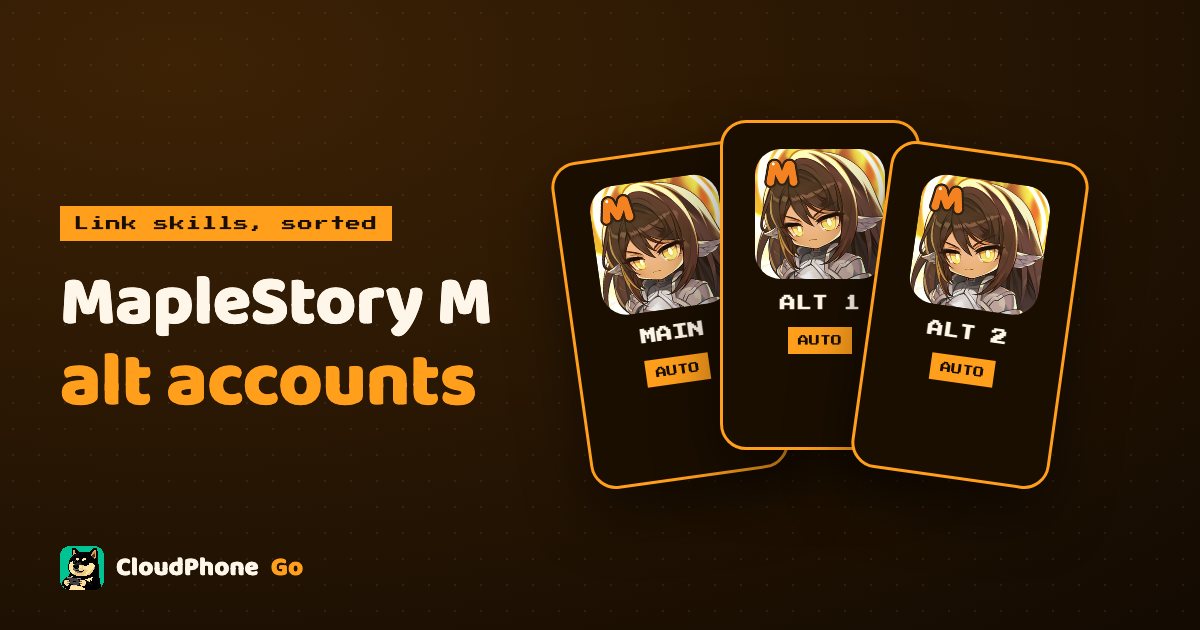
Link skills need alts, but switching accounts every day is tedious. One cloud phone per account lets every character spend its daily auto-battle time.
How do you run MapleStory M alts, and why one cloud phone per account?
The simplest setup is one account per cloud phone: your main stays on your own phone, and each other account sits on its own CloudPhone Go device running 24/7, spending its daily auto-battle time without you logging in and out every day. Same-account characters you level for link skills can share one cloud phone and take turns, leaving your own phone free.
In MapleStory M, link skills come from leveling characters of other classes, so building alts is part of daily life for most serious players. The catch is that one phone runs one account and one character at a time, and switching, collecting rewards and queuing dungeons every day is a grind.
CloudPhone Go is a real Android phone in a Taiwan data centre, controlled from your browser with no app to install, and it stays online after you close the tab. 胖胖 on our team plays MapleStory himself, and this guide collects the alt setups he and other players use.
First, link-skill alts and alt accounts are not the same thing
When people say alt, they mean one of two different things, and each needs a different setup. Sorting this out first saves a lot of wasted effort.
| Type | What it is | Online at the same time? | Suggested setup |
|---|---|---|---|
| Same-account character | Another class on the same account and server, mainly for link skills | Usually only one character per account can be online at once | Take turns on one cloud phone |
| Separate account | A fully separate account, such as a storage or support account | Yes, each on its own device | One cloud phone per account |
Link skills are usually shared between characters on the same account and server, so link-skill characters belong under your main account. They cannot auto-battle at the same time as your main, but while your main is idle, a cloud phone can work through each character's auto-battle time in turn. Rules can change with updates, so check the in-game description.
How does one cloud phone per account work in practice?
If you have several accounts, one per device is the cleanest approach. Each cloud phone is an independent Android device: sign in once and the account stays there, with no accounts kicking each other off.
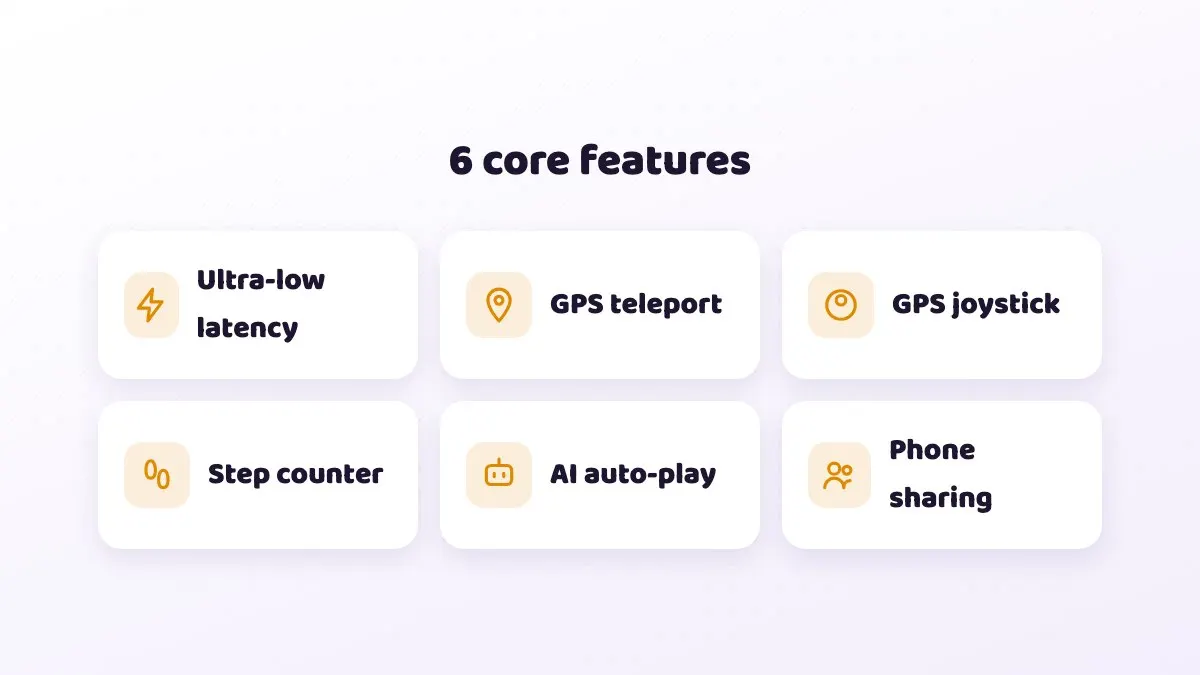
- Main on your own phone: bossing, manual play and chat stay in your hands, and your phone does not run hot all day.
- Each alt on its own device: every account spends its daily auto-battle time on its own cloud phone and can also run mini dungeons and collect daily rewards.
- Check from anywhere: a laptop at work or Safari on iPhone during your commute. Open a browser and switch to any device.
- Always on: the cloud phone keeps running after you close the browser, so a flat battery or the system killing the game is not a worry.
As one Bahamut player (西禾古月, Lineage 2M board, 2021) put it: 「雲手機只能掛機。自己手機解任務打王」, meaning cloud phones are for idling while your own phone handles quests and bosses. That is the split we recommend too.
Setup from scratch
- Open CloudPhone Go in your browser, sign in with Google and pick a plan.
- Enter the cloud phone, open the built-in Google Play and install MapleStory M. Every plan has 32 GB of storage.
- The first resource download takes a while, so let it run and do something else.
- Sign in to the alt account and pick the character. For link-skill rotation, sign in to your main account's alt character.
- Choose a map you can clear comfortably and turn on auto-battle.
- Check inventory space and potion settings, then close the browser.
- Come back at a fixed time each day to collect rewards, queue the next dungeon or switch to the next character.
To type Chinese in guild chat, write it on your computer and paste it into the cloud phone with Ctrl+V or Cmd+V. A physical keyboard also works when you control it from a computer.
Settings for each alt
- Pick a map where you one-shot mobs: auto-battle income usually depends on kill speed, and a map that is too tough earns less and gets you killed.
- Stock potions and clear the bag: a full inventory or empty potions usually cuts idle efficiency sharply.
- Lower the graphics: an alt only idles, so low graphics and effects are fine and run more smoothly on Starter.
- Log in at a fixed time: coming back at the same time each day is the easiest way not to miss daily content.
- Rotate link-skill characters: level one same-account character to the threshold you need, then move to the next.
If you also want your main on a cloud phone with high graphics and manual play, choose Standard or Performance. More cores and memory make the picture and controls smoother.
How many devices, and what does it cost?
Prices below are Beta prices, and every plan can be cancelled any time. The pricing basis is NT$9 per CPU core per day, falling to about NT$6.20 per core per day after discounts.
| Setup | Plan | Beta monthly | Beta yearly (per month) |
|---|---|---|---|
| Rotate same-account characters only | 1 x Starter | NT$489 | NT$419 |
| Main on your phone, 2 alt accounts | 2 x Starter | NT$978 | NT$838 |
| Main on the cloud with high graphics | 1 x Standard | NT$929 | NT$789 |
| Main plus 2 alt accounts | 1 x Standard + 2 x Starter | NT$1,907 | NT$1,627 |
To try it first, email hello@cloudphonego.com for a free 12-hour trial redeem code. Checkout is through Stripe, and the billing page shows your renewal date, lets you cancel renewal and download invoices.
Can friends share and level the same account together?
Yes. CloudPhone Go device sharing lets several people use the same cloud phone, which means sharing and co-leveling one account: a friend grinds while you are at work, you take over for bosses at night, and the character is looked after around the clock. Because the account stays signed in on the same cloud phone, nobody has to log in again or hand over a password when you swap.
Sharing has three roles: owner, operator and viewer. Give co-levelers the operator role, and guild officers who only want to check progress the viewer role. Several browser tabs can connect at once, so while one person plays, the others can watch live.
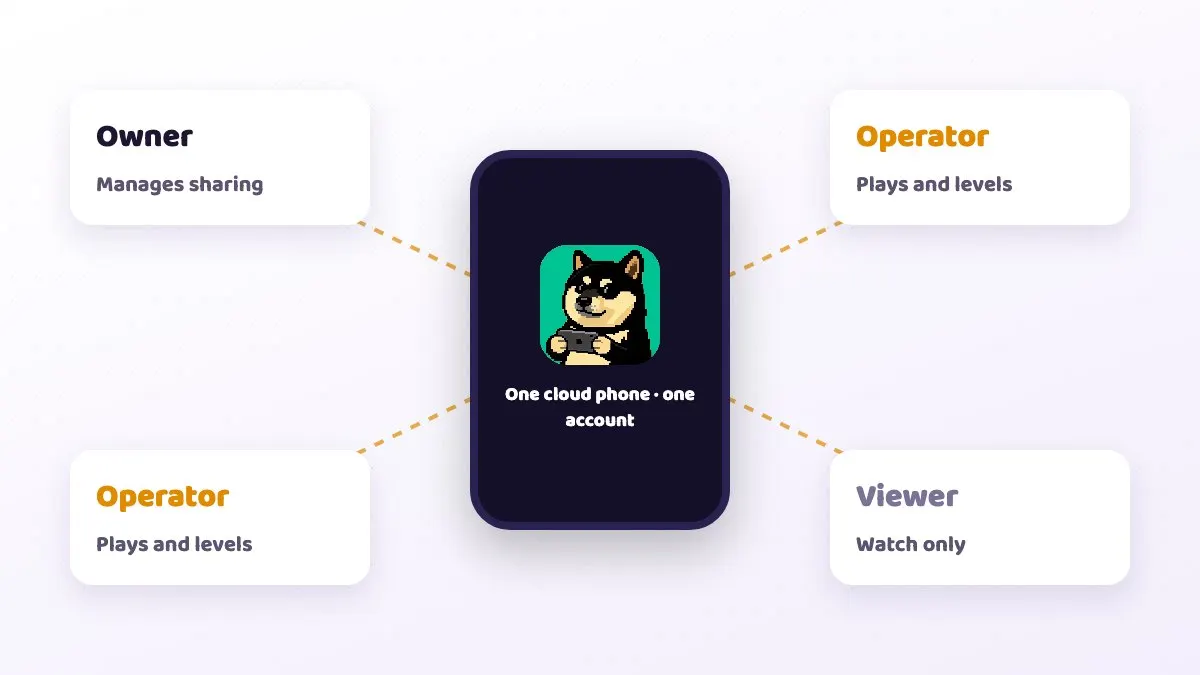
- Owner: the person who pays, who manages sharing and device settings.
- Operator: can tap and play, good for a friend collecting rewards for you.
- Viewer: can only watch, good for a guild officer checking you are still idling.
Think about what each person can do before you share. Account security is ultimately your responsibility, and check the game's rules on account sharing.
Common mistakes and troubleshooting
- One account on two devices: MapleStory M usually kicks the first device off. Keep each account on one device.
- Expecting same-account characters to idle with your main: one account usually allows one character online at a time. To idle in parallel you need separate accounts.
- A map that is too hard: dying on the spot wastes auto-battle time. Dropping one map down often earns more.
- Full inventory: you come back to find half a day of wasted idling. Clear the bag before you leave.
- No connection: strict corporate VPNs or firewalls can block direct WebRTC, and old browsers without WebCodecs cannot play the stream. Try another network or update the browser.
- Laggy input: check RTT, packet loss and FPS on the quality indicator. From Taiwan fibre and 5G to our Taiwan data centre, median latency measured in September 2026 was under 10 ms, but it varies by network.
- Unknown automation tools: third-party automation may break the game's terms. Read the rules and weigh the risk before using any.
FAQ
Q: Can I get MapleStory M link skills from another account? A: Usually not. Link skills are generally shared between characters on the same account and server, so level link-skill characters under your main account. Check the in-game description.
Q: Can one cloud phone run two MapleStory M accounts at once? A: We do not recommend it. One account per cloud phone is the most stable setup.
Q: Does auto-battle continue after I close the browser? A: Yes. The cloud phone runs 24/7, and closing the tab does not affect the game until the auto-battle time runs out.
Q: Is Starter enough for an idling alt? A: In most cases, yes, especially with low graphics. Consider Standard for a main you want to play manually on high graphics.
Q: Can I check my alts from an iPhone? A: Yes. Open it in Safari, and you can add it to your Home Screen like an app.
Q: Will running alts get me banned? A: We cannot promise any outcome for any account. Rules on multiple accounts and automation are set by the game's official terms, so check them yourself.