 CloudPhone
 Blog
Control a cloud phone with Claude Code over MCP
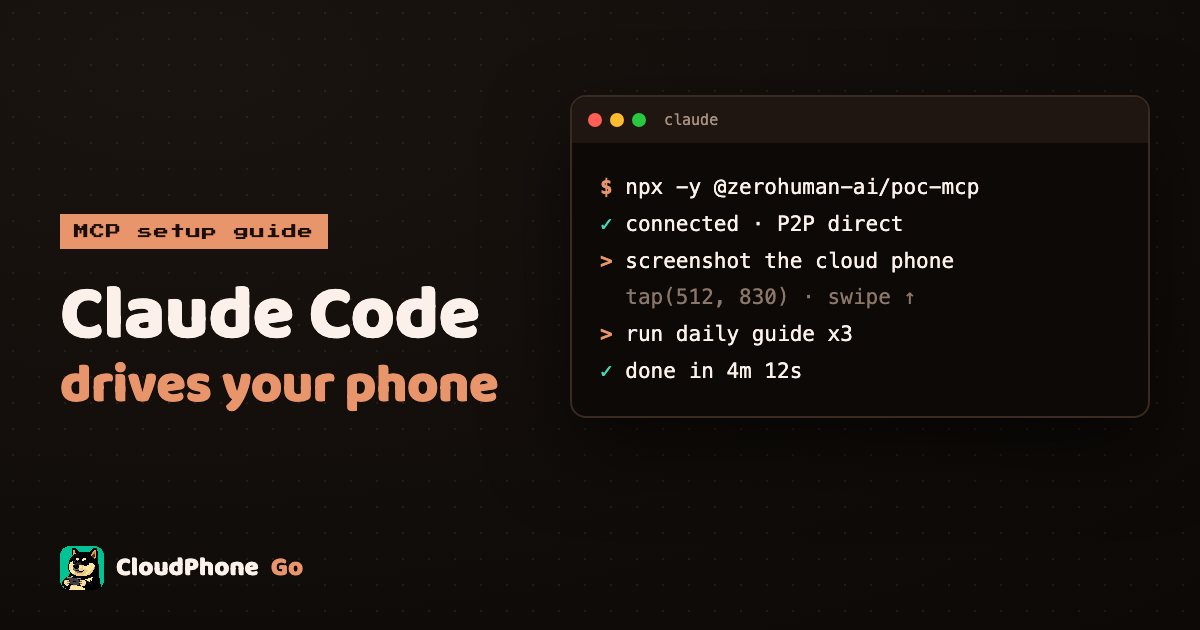
Let an AI agent see and operate a real Android phone. From creating a token to your first command, step by step.
Can Claude Code really control a cloud phone over MCP?
Yes. CloudPhone Go ships an official MCP server: you create a token in the device menu, paste one command into Claude Code, and the AI can take screenshots, tap, swipe, type, install APKs, move the GPS and run guides on a real Android phone. Setup takes a few minutes and the only local requirement is Node 18 or later.
This is different from a recorded macro. A macro replays fixed coordinates and falls apart the moment the screen changes. An AI agent looks at a screenshot before each step, so it has a much better chance of dealing with pop-ups, event banners and update prompts on its own.
If you want to idle a game, have an AI grind your dailies, or let an agent test the Android app you are building, it is like getting a pair of hands that never sleeps. The phone keeps running 24/7 in a Taiwan data centre even after you close your laptop.
What is MCP, and why does it suit phone control?
MCP (Model Context Protocol) is an open standard that lets AI tools call external capabilities. Think of it as a plug-in socket for AI: once an MCP server is connected, tools such as Claude Code, Claude Desktop, Codex and Cursor can use whatever it exposes.
Phone control maps neatly onto MCP. Every step is look, decide, act, which lines up with the screenshot, pixel colour and tap tools. The AI does not need to understand the game engine; it just reads the screen like a person would.
The CloudPhone Go MCP connection is direct P2P with no relay server. Commands go straight from your computer to the real phone in Taiwan, so responsiveness is similar to using the browser player (it always varies by network).
What do you need before you start?
The checklist is short, but missing one item will stop you:
| Item | Requirement | Notes |
|---|---|---|
| CloudPhone Go device | Any plan, or the free 12-hour trial card | Email hello@cloudphonego.com for a trial code |
| Operating system | Windows, macOS or Linux | All three are supported |
| Node.js | 18 or later | Check with node -v in a terminal |
| AI tool | Claude Code, Claude Desktop, Codex or Cursor | Your own account |
| Network | Must allow direct WebRTC | Strict corporate VPNs or firewalls may block it |
If you usually work on a corporate network, test once on a phone hotspot or home connection first. That rules out the firewall before you spend time debugging anything else.
How do you create a token and connect Claude Code?
Here is the path from zero to your first command, using Claude Code:
- Sign in to CloudPhone Go in your browser and open your cloud phone.
- In the device menu, open AI / MCP and create a token.
- Give it a recognisable name such as Laptop Claude Code, so you know which one to revoke later.
- Pick an expiry of 7, 30 or 90 days. For a first try, 7 days is plenty.
- Tick the permissions. If you only want the AI to watch, tick only the read items; add control permissions once you trust it.
- Copy the one-line Claude Code command and run it in your terminal. Under the hood it runs npx -y @zerohuman-ai/poc-mcp.
- Open Claude Code and ask it to take a screenshot of the cloud phone and describe it. If it lists the apps on your home screen, you are connected.
The very first call can take around 40 seconds while the package downloads and the P2P link is set up. That is normal, and later calls are much faster.
How do you set up Claude Desktop, Codex or Cursor?
The same AI / MCP menu has a ready-made option for each tool, so you never hand-write a config file:
- Claude Desktop: download the .mcpb file and double-click to install.
- Codex: copy the JSON config and paste it into Codex's MCP settings.
- Cursor: copy the JSON config and paste it into Cursor's MCP settings.
Use a separate token per tool. When you retire a machine, you revoke just that token and everything else keeps working.
Which tools are available?
The server's tools fall into five groups. The AI chooses which to call, but knowing them helps you write sharper instructions.
| Group | Tools | Typical use |
|---|---|---|
| See the screen | Screenshot, pixel colour, review_last_screen_touch | Which screen am I on, is the button lit, did the last tap land |
| Operate | Tap, swipe, type, keys, navigation, rotate, batch input | Open menus, scroll lists, type names, switch orientation |
| Files and apps | Read, write, rename, delete files; install APK | Drop in config files, install test builds |
| Automation | Run or stop scripts, run or stop guides, set and move GPS | Start a marketplace guide, change virtual location |
| Status | Device list, connection status, logs | Pick the right device, investigate problems |
A few launch options are worth knowing:
- --profile core: exposes only 12 essential tools. Fewer tools means fewer wrong picks and less context used.
- --readonly: observe only. Start here so the AI proves it understands the screen before it can touch anything.
- --inspector: opens a local visual debugger showing what the AI sent and where it tapped.
Coordinates are always 0 to 1000 ratios, so the centre of the screen is (500, 500). The same ratio hits the same relative spot at any resolution, which keeps notes and guides portable.
What can you actually ask the AI to do?
Once connected, you just talk to it. Some practical examples:
- Open the game, close every notice, claim the daily login reward, then send me a screenshot.
- Take a screenshot every 10 minutes and tap recall if the HP bar turns red (handy for babysitting an idle session).
- Install this APK from my computer, launch it and check whether the home screen crashes.
- List all my devices and tell me which ones are connected right now.
- Run this daily guide from the marketplace three rounds and report the log.
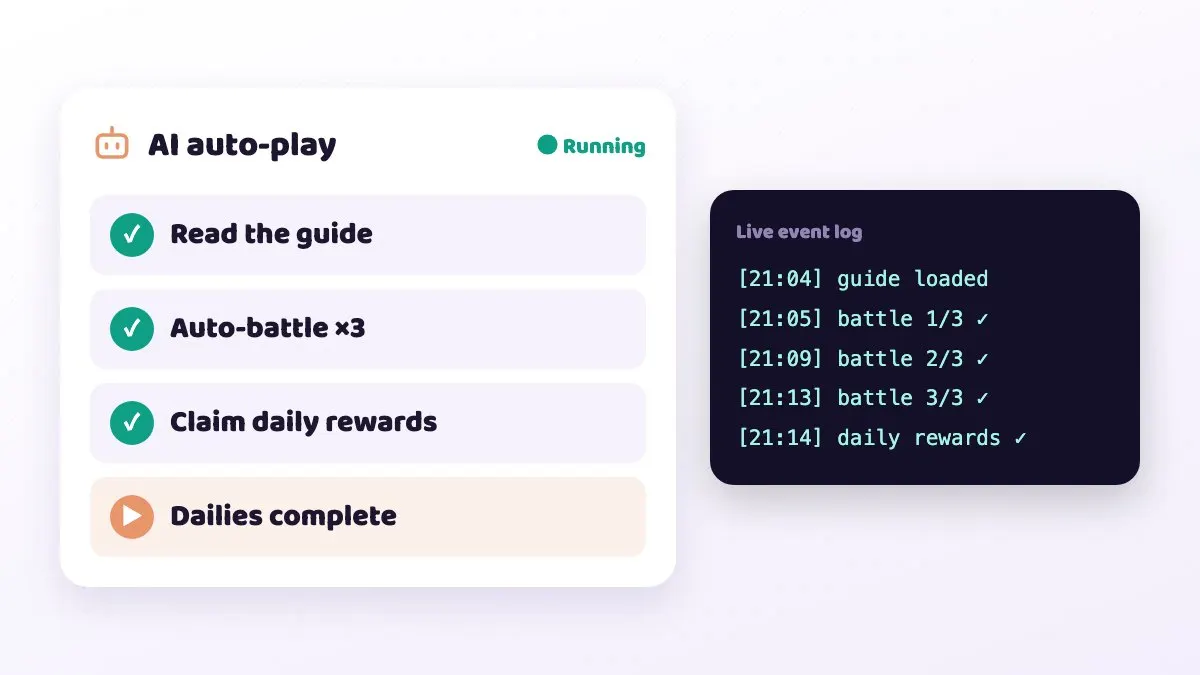
The more specific the instruction, the less the AI guesses. Spell out what done looks like, such as a certain word appearing or a button turning grey, rather than just saying finish it.
Keep a browser tab open on the same device and you can watch every tap live. The browser and MCP can connect at the same time, so you can take over by hand the moment something looks wrong.
How should you manage tokens and permissions?
A token is a key to your phone, so treat it like a password:
- Never paste a token, or a config containing one, into a public repo, Discord or forum.
- Grant only what is needed. A watch-only agent does not need file delete or APK install.
- Keep expiry short and create a new token when it runs out.
- Revoke unused tokens straight away in the AI / MCP menu.
One catch: revoking a token does not cut a connection that is already established. If you think a token leaked, revoke it and then reboot the device so the old session drops.
Also note that using AI or automation in a game may break that game's terms of service. Which games you use it with is your call and your risk.
Troubleshooting: common mistakes and fixes
| Symptom | Likely cause | Fix |
|---|---|---|
| First call hangs | Package download and connection setup | Wait about 40 seconds; later calls are quick |
| Never connects | Corporate VPN or firewall blocking WebRTC | Test on a hotspot or home network |
| npx errors out | Old Node version | Upgrade to Node 18 or later |
| Taps land off target | Pixel coordinates instead of ratios | Use 0 to 1000 ratios |
| Occasional handshake failure | Browser and MCP contending during handshake | Wait a few seconds and retry |
| AI says permission denied | Permission not ticked on the token | Create a new token with the needed permission |
If the AI taps and nothing happens, ask it to call review_last_screen_touch to check the last touch. It often turns out the tap hit the edge of a button or the screen had not finished loading.
FAQ
Q: Do I need to code? A: No. Setup is one copy and paste, and after that you give Claude Code instructions in plain language.
Q: Does MCP cost extra? A: MCP is a feature of the cloud phone. You use your own Claude Code, Codex or Cursor account, billed under that tool's own plan.
Q: Can the browser and the AI control the same device at once? A: Yes, both can be connected. They may occasionally contend during the handshake; just retry.
Q: Does the AI keep going after I shut my computer? A: The cloud phone runs 24/7, but Claude Code runs on your computer, so the agent stops when the computer does. For long unattended runs, use a marketplace guide that runs on the device.
Q: Will my game account get banned? A: We cannot promise either way. Rules on automation differ by game, so read the terms and judge the risk yourself.