 CloudPhone
 Blog
Pikmin Bloom step counter guide
No need to walk 10,000 steps. The cloud phone simulates steps while the GPS moves at walking speed, and Pikmin Bloom counts them.
Can a cloud phone count steps for Pikmin Bloom?
Yes. When CloudPhone Go's virtual GPS moves at walking speed, it simulates matching steps, capped at 3 per second, and the GMS pedometer permission is already granted, so Pikmin Bloom counts them with no extra setup. Simulating steps and location is against Niantic's terms of service, so weigh the risk yourself.
The usual Pikmin Bloom problem is simple: you sit at a desk all day, get home, and find you walked 2,000 steps and not a single seedling grew. A cloud phone lets a real Android phone in a Taiwan data centre do the walking while you control it from a browser, Safari on iPhone included.
This guide covers how Pikmin Bloom reads steps, how step simulation works, setup, how long to walk each day, and how to keep the record looking natural.
How does Pikmin Bloom count steps, and what are they for?
Pikmin Bloom is Niantic's walking game, and steps drive almost all progress. On Android it usually reads steps from Google's step data, so whatever the system records, the game syncs.
- Seedlings: seedlings need a set number of steps to grow into Pikmin, commonly 1,000, 5,000 or 10,000 steps depending on the type.
- Flowers: walking scatters petals and leaves a flower trail, the main way to finish daily goals and event tasks.
- Expeditions: Pikmin you send out bring back postcards and items, and their return is tied to walking too.
- Mushrooms and events: the more you walk, the more you get out of mushroom battles and community events.
Steps are not just a number; they are your growth rate. That is why Pikmin Bloom players care so much about building steps steadily every day.
How does CloudPhone Go's step simulation work?
Step simulation does not inject a lump sum. It is tied to the virtual GPS: while the location moves at walking speed, the system generates steps, and when the location stops, steps stop too. The movement the game sees and the step count line up.
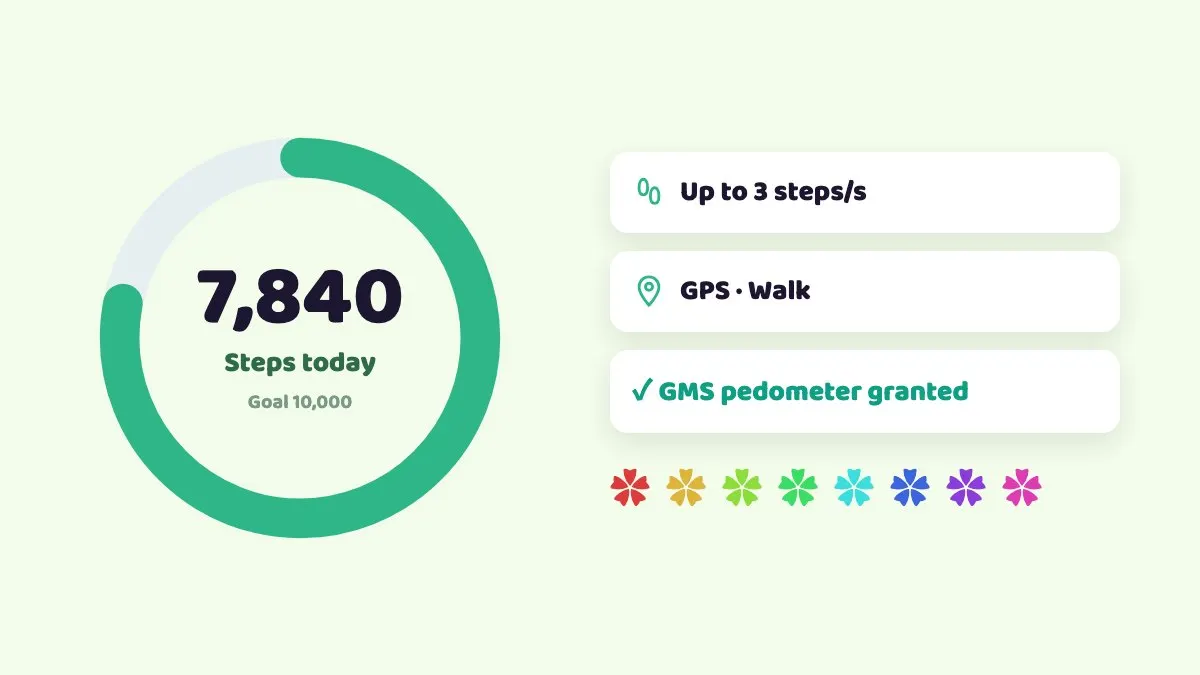
- The cadence is capped at 3 steps per second, roughly a brisk walk, so there are no implausible bursts.
- The GMS pedometer permission is pre-granted, so pedometer games like Pikmin Bloom need no extra setup.
- Move with the on-screen joystick or WASD on a keyboard. Speeds are walking, cycling, driving or custom; use walking to build steps.
- The cloud phone keeps running 24/7 after you close the browser, so the game is not killed when you close the tab.
Because all of this happens on a separate Android device, your own phone is untouched. There is nothing to install, no developer settings to change, and your main account can keep counting your real steps on your own phone as usual. From a laptop, WASD is the easiest way to walk; on an iPhone, drag the joystick with your thumb.
How do you set it up, from install to flower trail?
- Open CloudPhone Go in your browser and enter your cloud phone.
- Open the built-in Google Play and install Pikmin Bloom.
- Sign in to your Niantic account. A separate account is wiser, with your main kept on your own phone.
- On first launch, allow the location and physical activity permissions.
- Tap GPS on the control bar and pick a start point, such as a park or riverside path near home.
- Set the speed to walking and move along the path with the joystick or WASD, checking that the in-game step count rises.
- Turn on flower planting so the trail grows along your route.
- Stop when you hit today's goal and close the browser; the cloud phone stays on.
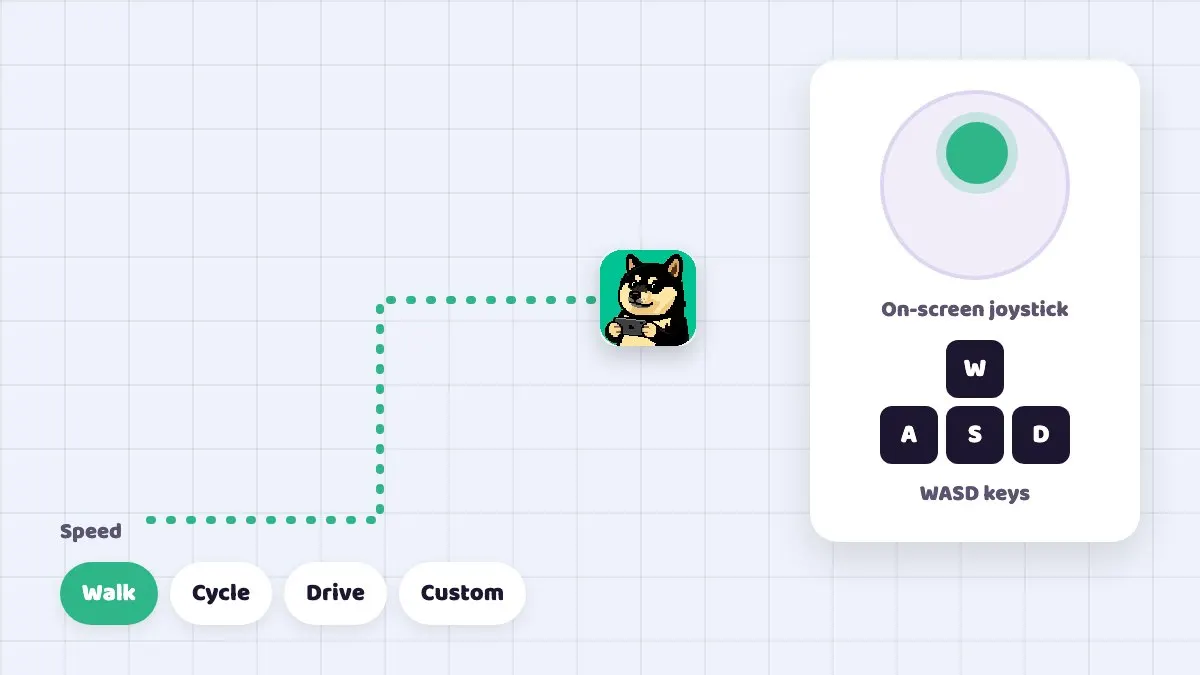
The joystick only moves while you use it. If you want a slow fixed route, an on-device ES5 script or a guide can drive the GPS, but keep to walking speed and a sensible daily total.
How long should you walk? Steps versus time
The cap is 3 steps per second, or 180 per minute. To look more like a casual stroll, aim for around 2 steps per second. The table below is simple arithmetic to help you plan.
| Target steps | At 3 per second (cap) | At 2 per second (stroll) |
|---|---|---|
| 5,000 | About 28 minutes | About 42 minutes |
| 8,000 | About 44 minutes | About 67 minutes |
| 10,000 | About 56 minutes | About 83 minutes |
| 15,000 | About 83 minutes | About 125 minutes |
Split the day into a few walks, say one at lunch and one after work, instead of two hours in a single stretch. Real people stop and start, and split sessions look more natural.
How do you keep steps and routes looking natural?
- Keep cadence below 3 steps per second; around 2 feels more like a stroll.
- Keep daily totals in a normal range, for example 8,000 to 15,000 steps, not 30,000 every day.
- Pick routes people actually walk: parks, riversides, shopping streets. Do not cut straight through rivers or buildings.
- Stay mostly near home rather than hopping between Taipei and Tokyo, which makes the record odd.
- Vary your timing. Walk a bit more at weekends and less on weekdays, the way a person would.
- When you stop, you really stop: steps follow the GPS, so there is nothing extra to manage.
None of this guarantees account safety. It just keeps your usage closer to a typical player's.
Can you use it alongside Pokémon GO?
One cloud phone can run both Pikmin Bloom and Pokémon GO, and both games see the same location and steps. Both are Niantic games, though, and their account systems may be linked, so trouble on one could affect the other.
The cautious approach is to use alts for both games on the cloud phone and keep your mains on your own phone. If you want two accounts walking different routes at once, run them on two cloud phones.
| Use | Suggested plan | Beta monthly / yearly per month |
|---|---|---|
| Pikmin Bloom only | Starter, 2 cores 4 GB | NT$489 / NT$419 |
| Pikmin Bloom plus Pokémon GO | Starter or Standard, 4 cores 8 GB | NT$489 or NT$929 / NT$419 or NT$789 |
Common mistakes and troubleshooting
- Steps not increasing: check the speed is walking, not driving, and that the game's permissions are allowed. Fully closing and reopening the game usually resyncs it.
- Moving but no flowers: flower planting has to be switched on in the game.
- Steps show up late: Pikmin Bloom sometimes syncs steps with a delay. Wait a few minutes or reopen the game.
- Walking too long at once: hours of nonstop walking looks unnatural. Split it up.
- No connection: strict corporate VPNs or firewalls can block direct WebRTC, and old browsers without WebCodecs cannot play the stream. Try another network or update the browser.
- Laggy input: check RTT, packet loss and FPS on the quality indicator. From Taiwan fibre and 5G, median latency measured in September 2026 was under 10 ms, but it varies by network.
Terms of service and risk
To be direct: simulating steps and location breaks Niantic's terms of service and can lead to warnings or account restrictions. CloudPhone Go provides the tools and cannot promise your account will not be actioned. Whether to use them is your decision and your risk.
If you just want to see how it works, email hello@cloudphonego.com for a free 12-hour trial redeem code and test with an alt. Sign-in is Google only with no passwords stored, and you can cancel any time.
FAQ
Q: Do I need to set up a pedometer permission for Pikmin Bloom? A: No. CloudPhone Go pre-grants the GMS pedometer permission; just allow the prompts on first launch.
Q: What is the step cap? A: Up to 3 steps per second, or 180 per minute. For a stroll-like pace, aim for about 2 per second.
Q: Can I add steps without moving the GPS? A: No. Steps are generated while the GPS moves at walking speed, and they stop when the location stops.
Q: Do steps keep coming after I close the browser? A: The cloud phone stays on, but the joystick only moves while you use it. For an automatic route, use a script or guide to drive the GPS.
Q: Can I control it from an iPhone? A: Yes. Open it in Safari, and you can add it to your Home Screen.
Q: Will I get banned? A: Nobody can promise. Step simulation breaks Niantic's terms, so any use carries risk. Use an alt and keep daily steps reasonable.