 CloudPhone
 Blog
Pokémon GO virtual GPS and joystick guide
Teleport to Tokyo, walk with a joystick at a realistic pace, hatch eggs from your desk. How the cloud phone's virtual GPS works, and how to move more safely.
What is a cloud phone's virtual GPS, and can you use it for Pokémon GO?
Yes. CloudPhone Go has a built-in virtual GPS: type coordinates or pick a popular landmark to teleport, then move with the on-screen joystick or WASD at walking, cycling, driving or a custom speed, and Pokémon GO reads the new location. Changing your location is against Niantic's terms of service, so whether and how you use it is your call and your risk.
CloudPhone Go is a real Android phone in a Taiwan data centre that you control from a browser. Safari on iPhone and iPad works, as does any modern browser with WebCodecs on Android, Windows, Mac or Linux. There is no app to install, and the phone keeps running 24/7 after you close the tab.
This guide covers teleporting, joystick speeds, the cooldown idea, common mistakes and which plan fits, then ends with an FAQ. The goal is not to move as fast as possible. It is to move in a way that looks natural and causes fewer problems.
Why use a cloud phone instead of spoofing on your own phone?
Changing location on your own phone usually means extra tools and developer settings, and on iPhone it is even more awkward. A cloud phone is a separate Android device with location control already built into the control bar, so your own phone stays untouched.
- Main and alt stay apart: your main account lives on your own phone and you walk normally; an alt lives on the cloud phone.
- Always on: the cloud phone keeps running after you close the browser, so you pick up where you left off.
- Any device: laptop at work, iPhone on the train, tablet at home. Open a browser and it is the same phone.
- Low latency: measured in September 2026 from Taiwan fibre and 5G to our Taiwan data centre, median latency was under 10 ms (it varies by network), so throwing balls and spinning stops feels close to local.
Streaming is WebRTC direct with H.265 and no relay server. The connection quality indicator shows RTT, packet loss and FPS, so check it first if things feel slow.
How do you teleport to a landmark in one tap?
Start with the landmark list the first time, then move on to exact coordinates once you are comfortable. You can copy coordinates from any map site and paste them into the cloud phone with Ctrl+V or Cmd+V.
- Open CloudPhone Go in your browser and enter your cloud phone.
- Tap GPS on the control bar to open the location panel.
- Pick a landmark such as Shibuya, Tokyo, or type latitude and longitude.
- Confirm the location and give it a moment to settle before opening the game.
- Open Pokémon GO. If the map still shows the old spot, fully close the game and reopen it.
- Look at the nearby stops and gyms and decide where to walk next.
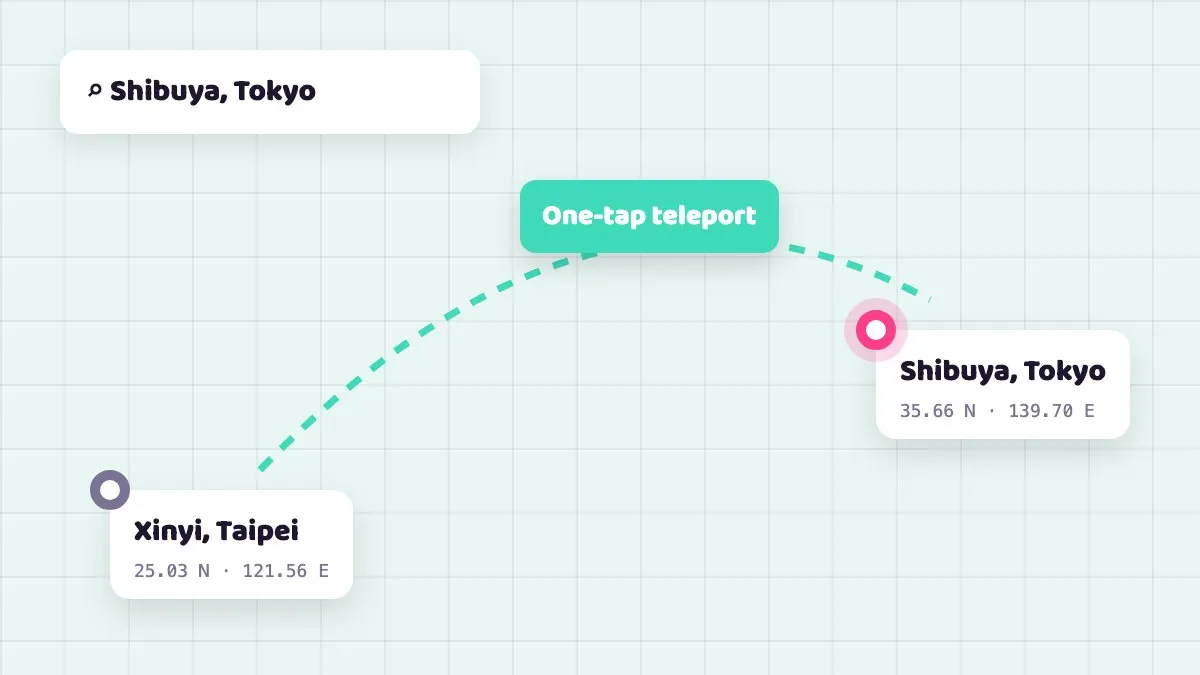
The teleport is only the starting point. What makes an account look like a normal player is how and how fast it moves afterwards.
How do the joystick and WASD work, and which speed should you pick?
After a teleport, move with the joystick or WASD. On a computer WASD is the most comfortable; on iPhone, drag the on-screen joystick. There are four speed modes, and choosing the right one matters more than how far you go.
| Speed mode | Good for | Notes |
|---|---|---|
| Walking | Hatching eggs, buddy distance, spinning stops, catching | Most natural; use it for daily play |
| Cycling | Covering a neighbourhood faster, quests | Generally still counts for egg distance, but may not if it runs fast |
| Driving | Moving between areas | Usually too fast for egg distance and may trigger a speed warning |
| Custom | Fine control over pace | Your setting; keeping it at cycling pace or below is sensible |
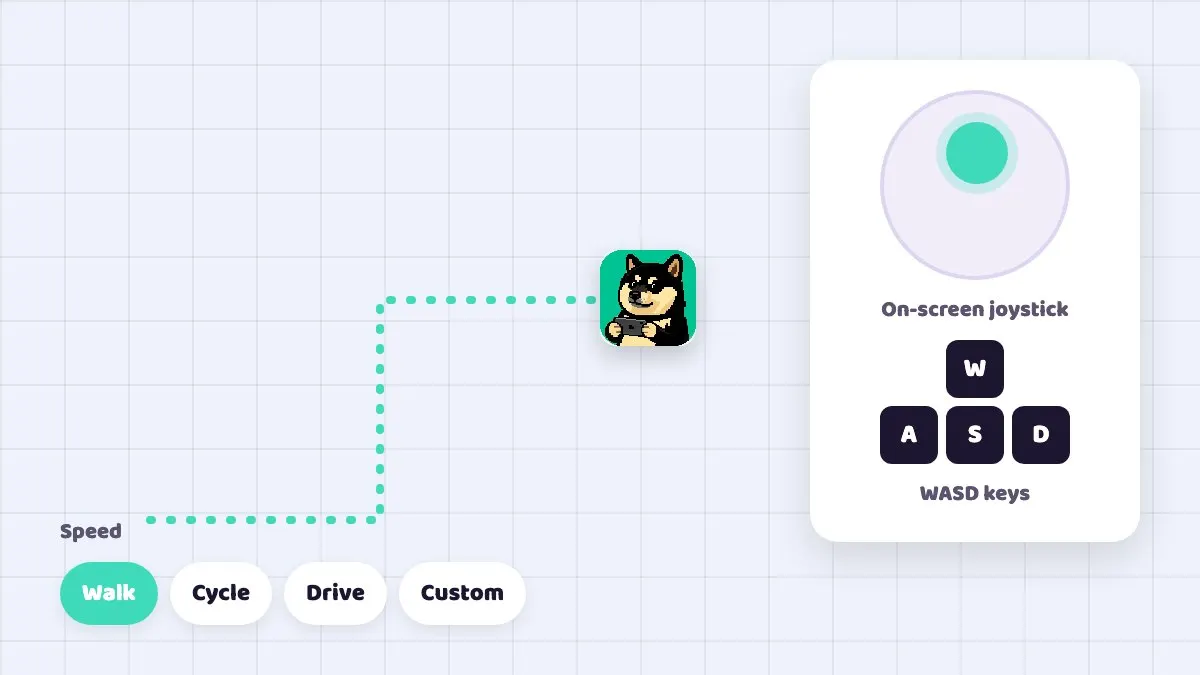
While the GPS moves at walking speed, CloudPhone Go also simulates steps, up to 3 per second, with the system pedometer permission already granted. The location and step count the game sees line up, instead of a position that moves while steps stay at zero.
How long should you wait after a teleport?
A common idea in the Pokémon GO community is that if you spin a stop or catch right after a long jump, the game may decide your travel speed was impossible. So most players wait a while after a jump. Niantic does not publish official numbers; the table below is only a rough community rule of thumb.
| Distance | Common community wait | Context |
|---|---|---|
| Under 1 km | About 1 minute | Strolling the same area |
| Around 10 km | About 5 to 10 minutes | Moving across town |
| Around 100 km | 30 minutes or more | Moving between cities |
| International, e.g. Taipei to Tokyo | About 1 to 2 hours | Err on the long side |
While you wait, you can walk around slowly with the joystick and look at the map, but avoid anything that leaves a record: spinning, catching, battling gyms. How the game checks this may change between versions, so treat the table as a concept, not a guarantee.
Practical uses: eggs, buddies and exploring from your desk
Plenty of people use virtual GPS not to tour the world but because they simply do not have time to walk. These are the common, gentler ways to use it.
- Hatching eggs: pick a park path and walk it back and forth at walking speed while you work.
- Buddy candy: buddy distance builds the same way as egg distance, so one route does both.
- Stocking up: walk slowly through a street dense with stops to refill balls and potions without jumping around.
- Stay local: skip overseas trips and walk within a few kilometres of home, which looks most like a normal player.
- Trip preview: before travelling, teleport to your destination to see the stops there, then play your main on your own phone when you arrive.
The joystick only moves while you are holding it. If you want a fixed route, on-device scripts or guides can drive the GPS, but the same rules about speed and pacing apply.
Common mistakes and troubleshooting
- Changing location with the game already open: set the GPS first, let it settle, then open the game. If it sticks on the old spot, fully closing and reopening usually fixes it.
- Catching right after a teleport: the most common mistake. Wait first, using the cooldown idea above.
- Living in driving mode: driving speed usually does not count for eggs and is more likely to trigger warnings. Walk for daily play.
- A stuck key: if you switch windows while holding WASD, the key can stay pressed and you return to find you walked a long way. Release keys before switching.
- Coordinates will not paste: Ctrl+V or Cmd+V needs your browser's clipboard permission, so allow it when asked.
- Black screen or no connection: strict corporate VPNs or firewalls can block direct WebRTC, and old browsers without WebCodecs cannot play the stream. Try another network or update the browser.
- Input feels laggy: check RTT and packet loss on the quality indicator. Moving from weak Wi-Fi to a cable or 5G often helps a lot.
Terms of service and risk: should you use an alt?
To be direct: changing location in Pokémon GO is against Niantic's terms of service and can lead to warnings, restrictions or a ban. CloudPhone Go provides the tools and cannot promise your account will not be actioned. How you use them is your decision and your risk.
If you care about your main account, the cautious approach is a separate Niantic alt on the cloud phone while your main stays on your own phone and walks normally. If something happens to the alt, your main collection is unaffected.
胖胖 on our team plays Pokémon GO himself, and his advice is simple: walk slowly, do not rush, and do not risk the account you care about most.
Which plan should you choose?
Pokémon GO is not a heavy game, so Starter is enough for most players. Every plan includes 32 GB of storage, and Google Play is built in, so you sign in and install the game directly.
| Plan | Spec | Beta monthly | Beta yearly (per month) |
|---|---|---|---|
| Starter | 2 cores, 4 GB | NT$489 | NT$419 (NT$5,028/year) |
| Standard | 4 cores, 8 GB | NT$929 | NT$789 (NT$9,468/year) |
| Performance | 8 cores, 16 GB | NT$1,749 | NT$1,489 (NT$17,868/year) |
To try it first, email hello@cloudphonego.com for a free 12-hour trial redeem code. Sign-in is Google only with no passwords stored, checkout is through Stripe, and you can cancel renewal any time.
FAQ
Q: Do I need root or anything installed on my phone? A: No. Location control is built into the CloudPhone Go cloud phone; your own iPhone or Android just views and controls it through a browser.
Q: Will using virtual GPS definitely get me banned? A: Nobody can promise either way. Changing location breaks Niantic's terms, so any use carries risk. Use an alt, stay at walking speed and allow reasonable cooldowns.
Q: Can I hatch eggs by walking with the joystick? A: At walking speed the game usually counts egg and buddy distance normally, and CloudPhone Go simulates matching steps. At high speed the game usually does not count distance.
Q: Does my character keep walking after I close the browser? A: The cloud phone stays on, but the joystick only moves while you use it. For automatic routes, use a script or guide to drive the GPS.
Q: Does it work on iPhone? A: Yes. Open it in Safari, and you can add it to your Home Screen so it feels like an app.
Q: Can I play an alt on the cloud phone and my main on my own phone at the same time? A: Yes, and that is the setup we recommend. Each device signs in to a different account and they do not interfere.