 CloudPhone
Blog
The CloudPhone Go Android app is on Google Play
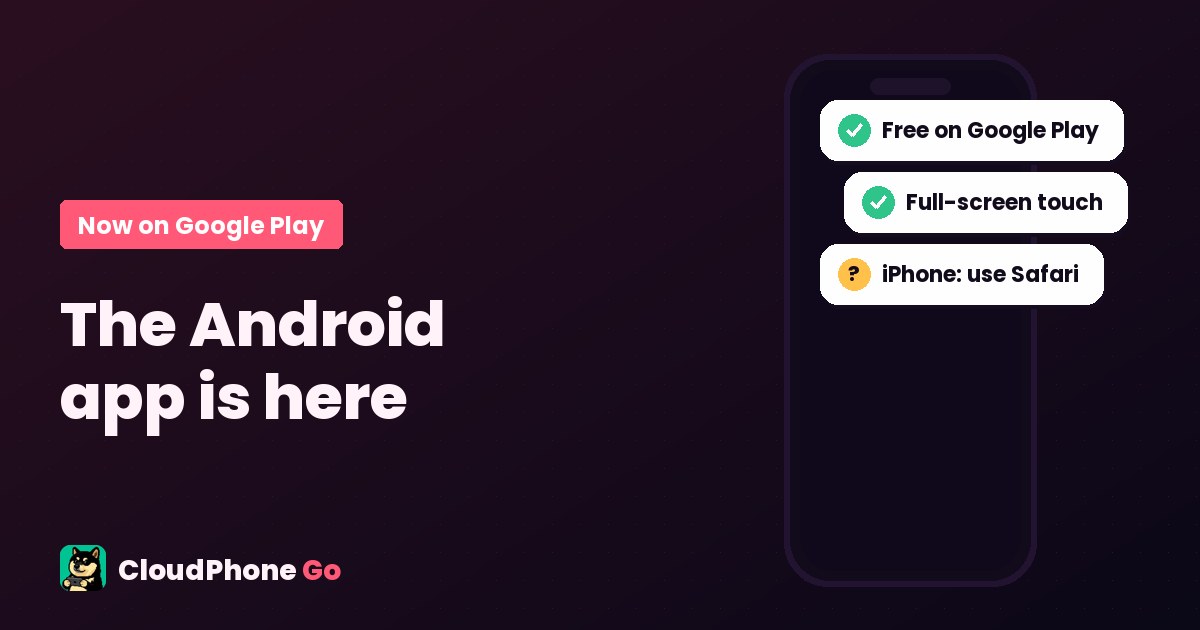
The CloudPhone Go Android app is now on Google Play. It brings your dedicated real Android phone in a Taiwan data center to your hand in full screen, and your game keeps running when you close the app. Here is how it compares to a browser, how to install it, the tools inside and how to cancel.
What is the CloudPhone Go app?
The CloudPhone Go Android app is now on Google Play as "CloudPhone Go 24/7 Cloud Phone", free to download. The app does not run your games itself. They run on your cloud phone: a dedicated real Android phone in a Taiwan data center that only you use. The app streams that phone's screen to your Android phone in full screen so you can play with your fingers.
Because the game runs on the phone in the data center, it keeps going when you close the app, lock your screen or your own phone runs out of battery. Open the app again, or sign in from a browser on a computer or iPhone, and you are back on the same cloud phone.
This post covers how the app differs from a browser, how to install it and sign in, the tools inside, what iPhone users do, and how to cancel a subscription. The full feature list is on the features page.
App, phone browser or computer browser?
The same cloud phone opens from three places. Your games and progress live on the cloud phone, so switching devices never means downloading a game again. The differences are the screen and the controls:
| Feature | Android app | Phone browser | Computer browser |
|---|---|---|---|
| Install | Free on Google Play | Nothing to install | Nothing to install |
| Screen | Full screen, no address bar | Address bar and toolbars take some space | Large window |
| Controls | Touch that feels like your own phone | Touch | Mouse and keyboard |
| Gamepad, keyboard, mouse | No | No | Yes |
| Tools: file upload, APK, virtual GPS and more | Yes | Yes | Yes |
| Good for | Playing on an Android phone | iPhone and iPad | A gamepad, or long sessions with keyboard and mouse |
In short: on an Android phone, the app is the smoothest way in. On iPhone and iPad, use Safari. For a gamepad or keyboard and mouse, open it in a computer browser.
How do I install the app and sign in?
- On your Android phone, open Google Play and search for "CloudPhone Go", or tap the Google Play button below. On iPhone and iPad, skip the app and open it in the browser, which is why Apple devices do not show the button below.
- Tap Install. The app is free to download.
- Open the app and sign in to your CloudPhone Go account. If you already use the website, sign in with the same account and your cloud phones appear.
- If you do not have a plan yet, choose a monthly or yearly subscription in the app.
- Tap a cloud phone to open it in full screen, then install games and play.
Games are installed on the cloud phone, so they take no storage on your own phone. Only the app itself is on your phone.
Which tools does the app have?
Most of the tools you use on the website are in the app too:
- Upload file: send photos, videos or other files from your phone to the cloud phone; they land in its Download folder.
- Install APK: for a game that is not on Google Play, upload an APK, APKS, APKM or XAPK file and install it on the cloud phone.
- Paste clipboard: copy text on your phone, paste it into the app's input box and send it to type it on the cloud phone. Handy for usernames, chat and redeem codes.
- Virtual camera: let apps on the cloud phone see an image you pick, or your phone's camera.
- Screenshot: save what the cloud phone is showing.
- Screen recording: record the cloud phone's screen as a video.
- Virtual GPS and a floating joystick: set the cloud phone's location, then move with an on-screen joystick. Location games have their own rules on this, so read the game's terms first.
- Share device: share your cloud phone with someone else.
The toolbar also shows External devices, but gamepads, keyboard and mouse work from a computer browser.
Installing games with Google Play on the cloud phone
A cloud phone is an Android phone, and it has Google Play. Open Google Play on the cloud phone, sign in with your Google account and download games there. Game updates come through the same Google Play.
Do not mix up the two Google Plays: the one on your own phone installs the CloudPhone Go app, and the one on the cloud phone installs games. You sign in to each separately.
Can I use it on iPhone or iPad?
There is no iOS app. On iPhone and iPad, open cloudphonego.com or app.cloudphonego.com in Safari and sign in. You get the same features as the Android app, and you can add it to your Home Screen to open it with one tap. For the full walkthrough, see how to play Android games on iPhone.
Gamepads, keyboard and mouse work only from a computer browser, not from the Android app or a phone browser.
Plans and how to cancel
Plans are billed monthly or yearly; see pricing for what each includes. A plan you subscribe to in the app is billed and renewed by Google Play, so you cancel it in Google Play:
- Open your Google Play subscriptions page: Subscriptions in the Google Play app, or play.google.com/store/account/subscriptions in a browser.
- Choose CloudPhone Go.
- Tap Cancel subscription and follow the prompts.
Google's help page points out that uninstalling the app does not cancel the subscription. If you subscribed through checkout on the website, Google Play does not bill it: sign in at app.cloudphonego.com and manage it on the Subscription page of your CloudPhone Go account.
Latency, the shared IP and multiple accounts
On fiber or 5G in Taiwan, we measured median latency under 10 ms in September 2026*. Your numbers will vary with your network, where you are and the time of day. For reading latency and fixing lag, see cloud phone latency explained.
All cloud phones share one public IP. If you plan to run several game accounts on several cloud phones, know this first: every game has its own rules on multiple accounts and on logins from the same IP, and whether and how you do it is your call under those terms. We cover this in can a cloud phone get you banned?.
*Median measured in September 2026 from fiber and 5G connections in Taiwan; results differ by network.
What to check when choosing a cloud phone app
If you are comparing cloud phone apps, these points help you read any provider's claims, ours included:
- Whether each cloud phone is a dedicated real Android phone.
- Where the data center is: closer usually means lower latency.
- Whether it keeps running after you close the app, which matters most for idle games.
- Whether iPhone and iPad can use it, and whether gamepads work.
- How to cancel: a plan bought through Google Play should cancel in Google Play.
- Whether the public IP is shared or separate, which affects multi-account setups.
For specs side by side, see our cloud phone comparison.
FAQ
Is there a CloudPhone Go app, and does it cost anything?
Yes. The Android app is on Google Play as CloudPhone Go 24/7 Cloud Phone and is free to download. Using a cloud phone needs a plan, billed monthly or yearly.
Is there a CloudPhone Go app for iPhone?
There is no iOS app. On iPhone and iPad, open cloudphonego.com or app.cloudphonego.com in Safari and sign in. You get the same features as the Android app, and you can add it to your Home Screen.
Does my game stop when I close the app?
No. The game runs on a dedicated real Android phone in a Taiwan data center, not on your phone, so the cloud phone keeps running when you close the app, lock your screen or your phone runs out of battery.
Can I use a gamepad or keyboard and mouse in the app?
No. Gamepads, keyboard and mouse work only from a computer browser. To play with a gamepad, open the same cloud phone in a browser on your computer.
How do I cancel a plan I bought in the app?
Plans bought in the app are billed by Google Play. Open your Google Play subscriptions page (Subscriptions in the Google Play app, or play.google.com/store/account/subscriptions), choose CloudPhone Go and tap Cancel subscription. Uninstalling the app does not cancel it. Plans bought through checkout on the website are not billed by Google Play; manage them on the Subscription page of your account at app.cloudphonego.com.
Can I download games with Google Play on the cloud phone?
Yes. A cloud phone is a real Android phone with Google Play. Sign in with your Google account to download and update games. For games that are not on Google Play, you can upload and install an APK.