 CloudPhone
Blog
MLB 9 Innings 26: a 162-game League, the MLB event calendar and moving to a cloud phone
League seasons run 162 games, many event coins come from League play, and 2026 piled on new growth systems. Here they are in order, plus why a guest account should be synced before it moves to a cloud phone.
Setup steps and recommended plan: MLB 9 Innings 26 game guide →
162 games a season, events on the MLB calendar: why MLB 9 Innings 26 suits a cloud phone
A League season in MLB 9 Innings 26 is 162 games; the account in our screenshot was at game 145. Nobody bats through all of that by hand, so the season really runs on the built-in Quick Play and Auto Game. Meanwhile the events follow the real MLB year, from Spring Camp through the All-Star break and the postseason to the anniversary, and plenty of event coins are earned in League. What the game wants, in short, is an app left open and an account left signed in for long stretches. That is the job we give a CloudPhone Go cloud phone: the game runs on an Android phone in our Taiwan data centre, and you pick it up from any browser on PC or phone.
The cloud phone does not play baseball for you. Only Quick Play and Auto Game move on their own; Ranked Battle and other games against real people are still yours. If the whole idea is new, start with what a cloud phone is.
MLB 9 Innings 26 is Com2uS's officially licensed MLB baseball game, with 10M+ downloads on Google Play, 2026-season team logos, uniforms and stadiums, and nearly 2,000 players in full 3D. The 10th anniversary update at the end of October 2026 added a new League difficulty, Challenge League, and a new growth feature, Ceiling Break.
Tip 1: how to push League Mode
League Mode is the single-player mode where you play through a season schedule game by game; our screenshot shows game 145 of 162 on that account. The official release notes trace how it has grown: a 3x speed option for Quick Play (May 2025), three more Master League tiers (July 2025), a Master League mileage revamp (April 2026), League Clutch Play Mode (July 2026) and the Challenge League difficulty (October 2026). Here is how to use them:
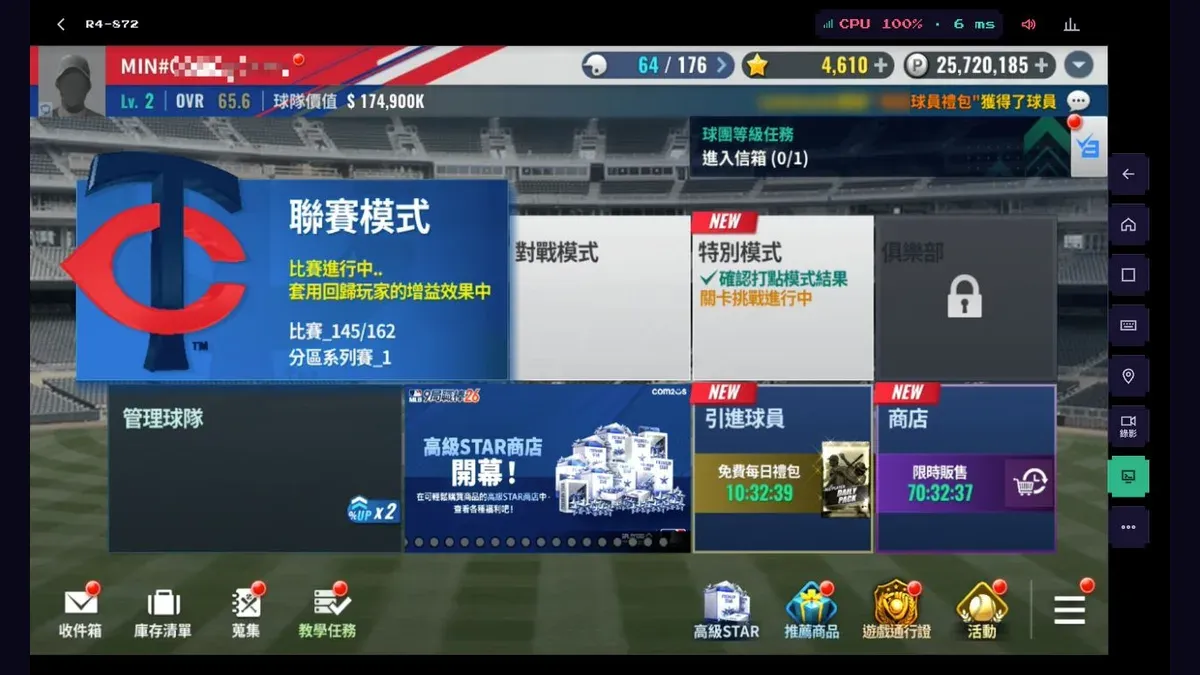
- Grind the tiers you already win with Quick Play at 3x. On a cloud phone the app stays open in the data centre while you work or eat, so the season keeps moving without tying up your phone or your evening.
- Want a few at-bats without a full nine innings? Try League Clutch Play Mode, added in July 2026. Go by the in-game description for how it plays. Open it from a PC browser at lunch, close it after, and the progress stays in the cloud.
- After stepping up to a higher Master League tier or Challenge League, play a handful of games and watch your win rate. If you are losing more than winning, go back and fix the lineup (see tip 3) rather than forcing it. A big PC screen makes replays and lineup comparisons far easier to read.
- Events often count League play. RealSport101 reports that 2026 All-Star shop coins were earned in League Mode and that a 10th anniversary event tracked League home runs, so keep League running during events and the rewards build up with the schedule.
| Item | App open, or your hands? | What the cloud phone does |
|---|---|---|
| League Quick Play | App open; a tap when the next game needs starting | The app stays open; one click from any browser |
| Free daily pack, login rewards | Signed in, and a tap to claim | The account stays signed in; open a tab and claim |
| Event missions and event shops | Mostly earned by playing games; you pick what to buy | League keeps going; shop when you have a minute |
| Ranked Battle, Arcade Mode | Against other players, by hand | Play them yourself on a big PC screen or your phone |
| Lineup, Level Expansion, Ceiling Break | Your decisions | Compare cards on a big PC screen at your own pace |
The catch with pushing League on your own phone is that 162 games means a screen left on and a 3D game left open for a long time. On a cloud phone the half-finished season sits on the device in the data centre, and your own phone is free for everything else. Whether games chain one after another depends on the in-game settings; where the game waits for a tap, one click from any browser starts the next one.
What players say: in an October 2026 thread on Bahamut, most players said they simply quick-sim League, while some let every game play out for the boxes each game drops, with one warning that the drink boosts run out fast that way. A free-to-play guide on the same board says to push Master League as fast as you can and leave it on the game's own auto-play, since that is the steadiest source of black diamond shards and skill tickets. Both use only built-in features; the choice is speed versus per-game rewards.
Tip 2: the event calendar follows the MLB season
Read through the App Store release notes and a pattern shows: the big events track the real MLB season, and 2025 and 2026 followed roughly the same rhythm. The table gives months only; check the in-game notices for exact dates and rewards.
| When | Seen in the official notes | What you do | How the cloud phone helps |
|---|---|---|---|
| Late February | Spring Camp event shop and rewards for successful predictions (2025) | Collect event coins; come back to make predictions | The account stays signed in; tap from PC or phone any time |
| Late March | New-season update with new players, logos and stadiums (2025, 2026) | The first launch after it downloads resources | The download happens in the data centre, not on your data plan |
| Late June to July | All-Star event shop (2025, 2026) | Collect event coins and trade them in the shop (reported as earned in League in 2026) | Keep League running for the whole event |
| Late September | Postseason event shop (2025), Postseason Pick 'em streak predictions (2026) | Streaks mean coming back on time | A tap from your phone browser on the commute |
| Late October | Anniversary update; the 10th added Challenge League and Ceiling Break (2026) | Log in for anniversary gifts, try the new difficulty | No missed logins on a busy week |
The 2026 anniversary is a good example. PocketGamer and RealSport101 both report a Supreme player for simply logging in, and a 10th Anniversary Main Hall where event coins recruit up to 10 Signature Players, with missions made easier so new players can finish. Login rewards are the easiest thing to forget; with the account parked on a cloud phone, a quick tab each day is enough.
On top of that there is the Weekly Reward Box (improved in August 2025), and Ranked Battle runs in seasons (Season 5 started in September 2026). Pick one fixed time each week to clear the box, the shops and your predictions together.
Tip 3: a growth order for the 2026 systems
Com2uS added several growth systems through 2026, and the names pile up fast. Taken in the order they arrived, they make a sensible path:
- Put the Diamond Prime player you start with into the lineup. The Google Play listing says every new account gets one, so let them carry the team early.
- Follow the 9 Innings Guide (added April 2026) and the Team Level missions (added March 2026). They are the official route for new players and walk you through every mode. Many missions need games played, so a League that keeps running on the cloud phone moves them along too.
- Check your Team Value (added February 2026). Com2uS frames it as the way to raise your team towards the top; when League stalls, look at where the value is lagging.
- Test lineups in the Analysis Lab before big games (it replaced Lineup Test in May 2026). Batter and pitcher records are much easier to compare on a PC monitor than on a phone.
- Use Level Expansion (formerly Limit Break, reworked in January 2026) on your core players.
- Leave Ceiling Break (added October 2026) for last. It takes players already at the top grade past their limit, so spend it only on the regulars who play every day.
All of these are your choices; the cloud phone does not make them for you. What it does is keep the account signed in, so you can do one step from a PC browser on a break and carry on from your phone later, with no new login and no re-download.
A 2.5 GB 3D baseball game belongs on a phone in the data centre
- Storage: the App Store lists the iOS version at 2.5 GB, and the late-March new-season update and the late-October anniversary update each bring new resources to download. On a cloud phone all of it lands in the device's own 32 GB, over the data centre's connection.
- Rendering: the store listing promises nearly 2,000 players in full 3D, over 600 batting and pitching motions and a dynamic home-run camera. The cloud phone does that work; your device only plays the video.
- The Analysis Lab on a monitor: any browser on Windows or Mac, no emulator. Batter and pitcher records are far easier to compare on a PC screen, with a mouse and keyboard.
- Same season on the commute: your work PC and Safari on iPhone both open the same cloud phone, so it is one save. If the picture stutters, see how to fix cloud phone lag.
- Controllers: External devices in a computer browser takes up to 4 controllers in Xbox, Switch or PlayStation mode, but the game itself has to support controllers, and we have not checked this one.
Before you move: get off the guest login
The Com2uS Management Policy has a Temporary Membership section. On a guest login, changing, modifying or initialising the device, or deleting the app's cache or data, can delete your usage and purchase records or leave them unverifiable. The fix it names is syncing the account, either to a Hive account inside the game or through Google, Apple, Facebook and similar platforms, and Com2uS takes no responsibility for problems on accounts that were never synced. Moving to a cloud phone is a device change, so do this first.
- Your main: check on your current phone that it is synced to Hive or a platform account rather than a guest, then sign in on the cloud phone the same way.
- Alts: sync a new account straight away. If you later stop or reset that cloud phone, a guest account's records may go with it.
- Where each lives: give every account its own cloud phone, running its own League and claiming its own daily pack. Keeping the main on your own phone and only the alt in the cloud works too.
- One account per device: do not keep swapping accounts on the same cloud phone.
How many accounts is sensible depends on the Com2uS rules further down.
What players say: players on Bahamut starting a new account often reroll the start as a guest, bind only once they get a start they want to keep, and clear the app data to roll again; one reply notes that once a device has signed in to a bound account, its guest option disappears. Either way, bind the moment you decide to keep an account and never play on as a guest. Rerolling is still subject to the Com2uS rules below.
Moving from your phone to a cloud phone in seven steps
- On your current phone, open the game and check the account is synced to Hive or a platform account. If it is still a guest, sync it now.
- Start a cloud phone on CloudPhone Go and install MLB 9 Innings 26 from the built-in Google Play.
- The first launch pulls down a large batch of resources. Let it finish on its own.
- Sign in with the same method you synced with, and check your team and League progress are there.
- On a new account, run through the 9 Innings Guide and the Team Level missions once so you have seen every mode.
- Go to League, pick a tier you already win, and turn on Quick Play at 3x. Set the graphics to suit your plan.
- After that, drop in daily for the free pack, the events and the next game, and weekly for the Weekly Reward Box and the event shops.
What players say: players on Bahamut report that a regular League season is saved per device and may start over on a new one, while Master League is online and follows the account, and League balls are shared. Those Bahamut reports predate the 26 edition, so the safe move for a regular season you are halfway through is to finish it on your old phone before moving, then check that your team, players and Master League progress are all there.
How many devices, and what does it cost?
Prices are Beta prices; during the beta, monthly and yearly billing both take about another 10% off. Monthly has no lock-in: stop renewal on the billing page whenever you like and the service runs to the end of the period.
| Setup | Plan | Beta monthly | Beta yearly (per month) |
|---|---|---|---|
| Main in the cloud, batting and watching games yourself | 1 x Standard | NT$929 | NT$789 |
| Main plus 1 alt, Standard on every device | 2 x Standard | NT$1,858 | NT$1,578 |
| Main plus 1 alt, trying Starter for the alt (lowest graphics) | 1 x Standard + 1 x Starter | NT$1,418 | NT$1,208 |
| Main plus 2 alts, Standard on every device | 3 x Standard | NT$2,787 | NT$2,367 |
Our suggestion: MLB 9 Innings 26 is full 3D, so for a main you bat with and watch, pick Standard (4 cores, 8 GB). Alts that only run Quick Play and claim packs still render the same 3D, so we suggest Standard on every device. To save a little, you can try Starter (2 cores, 4 GB) for an alt with graphics at the lowest; we have not tested this game on Starter, so judge by how it actually runs, and upgrade in one click any time. Every device gets dedicated resources. Checkout is through Stripe, and the billing page shows your renewal date, lets you cancel renewal and download invoices.
What rules should you know before making alts?
The Com2uS Management Policy (English, in force from 9 March 2026) lists using multiple accounts for a game for profit as abnormal use with a permanent restriction. The note under it includes creating accounts (characters) and playing on the same device or adjacent IP bands with multiple accounts to unfairly take items or game money. Separately, the Terms of Service ban robots, unauthorised scripts, cheats and mods, ban buying, selling or trading game accounts, virtual currency or items for commercial purposes, and ban sharing your password so others can sign in.
That note names the same device and adjacent IP bands, which matters if you use cloud phones: CloudPhone Go devices currently all go out through one public IP, so however many you run, those accounts show up on the same IP. Separate devices spare you the account switching; they do not separate the connection. Do not pour resources into one account, and stick to the built-in Quick Play and Auto Game. The policy sets no number, and Com2uS makes the call. Our broader write-up is Can a cloud phone get you banned?.
Common mistakes and troubleshooting
- Forcing a whole season on a new difficulty: test Challenge League or a higher Master League tier for a few games first, and fix the lineup if you keep losing.
- Spreading Ceiling Break across every card: resources are limited, so raise the everyday regulars first.
- Forgetting anniversary or event login rewards: keep the account signed in on a cloud phone and open a tab once a day.
- One account on two devices: keep each account on one device so two sessions do not get in each other's way.
- Expecting the cloud phone to play for you: only the built-in Auto Game and Quick Play run on their own. Ranked Battle and other matches against players still need you.
- Missing a big update: after the late-March and late-October updates, the first launch downloads new resources. Check in, or the game sits on the update screen.
- Moving a guest account as it is: a guest login may not bring its records across to a new device. Sync to Hive or a platform account first, as in the steps above.
- Third-party automation: the Com2uS terms ban robots, unauthorised scripts and cheats outright, so do not use them.
FAQ
What should I do when a League tier gets too hard?
Do not force the whole season. Test lineups in the Analysis Lab, see where your Team Value lags, use Level Expansion on core players and leave Ceiling Break for last. Clear the tiers you already win with Quick Play at 3x; the cloud phone keeps the app open while you compare cards on a PC screen.
If I close the browser mid-season, where does League pick up?
Right where the app on the cloud phone left it; closing the browser only means you stop watching. Whether Quick Play chains games by itself depends on the in-game settings, and when the next game needs a tap, any browser will do.
Can I move a guest account straight to a cloud phone?
Sync it first. The Com2uS Management Policy says a guest account can lose its records when the device changes, is reset, or the app data is deleted. Sync to a Hive account or a platform such as Google in the game, then sign in on the cloud phone the same way.
Can one cloud phone run two accounts at once?
We would not swap accounts back and forth on one device. Give each account its own cloud phone, running its own League and claiming its own packs with no logging in and out; how many accounts to run is a question for the Com2uS rules.
Which plan should I pick?
The game is full 3D, so we suggest Standard (4 cores, 8 GB) for every device, main and alts alike. To save a little you can try Starter (2 cores, 4 GB) for an alt with graphics at the lowest, but we have not tested it, so judge by how it runs and upgrade any time.
Which Com2uS rule matters for alts?
The Com2uS Management Policy makes using multiple accounts for profit grounds for a permanent restriction, and its note names multiple accounts on the same device or adjacent IP bands. CloudPhone Go devices currently connect through one public IP, so keep the count low, use only Quick Play and Auto Game, and remember Com2uS decides.
Do I have to replay League after moving to a cloud phone?
Your team, players and Master League follow the account. Players on Bahamut report that a regular League season is saved on the device and may restart on a new one, while League balls are shared. Finish a half-played regular season on your old phone before you move.
Sources
- Google Play: MLB 9 Innings 26 (Com2uS; downloads and game description, Traditional Chinese listing, checked 2026-11-07)
- App Store Taiwan: version history (Traditional Chinese)
- App Store US: MLB 9 Innings 26 version history (Auto Game, Quick Play 3x speed, Clutch Play, Challenge League, Ceiling Break, event shops)
- App Store Japan: version history (Japanese)
- PocketGamer: MLB 9 Innings 26 10th anniversary update (2026-10-30)
- RealSport101: MLB 9 Innings 26 10th anniversary update, Ceiling Break and events (2026-11-02)
- RealSport101: MLB 9 Innings 26 All-Star celebration events (2026-07-27)
- Com2uS Game Management Policy (Traditional Chinese, in force from 2026-03-09)
- Com2uS Terms of Service (Traditional Chinese, in force from 2026-03-09)
- Com2uS Management Policy (English, in force from 2026-03-09)
- Com2uS Terms of Service (English, in force from 2026-03-09)
- Com2uS Management Policy (Japanese, in force from 2026-03-09)
- Com2uS Terms of Use (Japanese, revised 2025-10-20)
- Bahamut forum: how do you play League Mode?, October 15, 2026 (quick-sim or play each game, player discussion; Chinese)
- Bahamut forum: free-to-play beginner guide, May 1, 2026 (player guide; Chinese)
- Bahamut forum: League progress differs between phone and emulator, July 14, 2024 (regular League saved per device, player reports; Chinese)
- Bahamut forum: regular season restarted after signing in again, reply of March 10, 2024 (regular League resets on a new device; Chinese)
- Bahamut forum: rerolling a starting account, October 1, 2026 (rerolling as a guest, player experience; Chinese)